


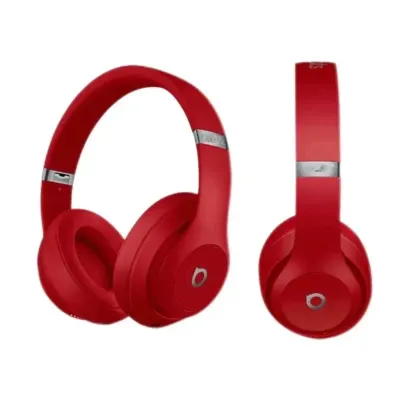
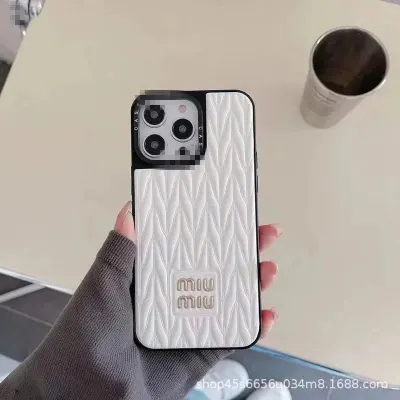
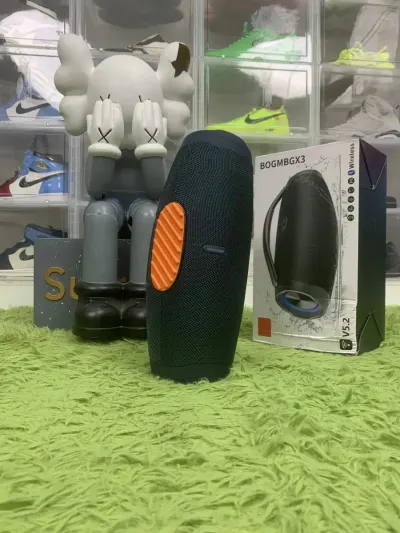
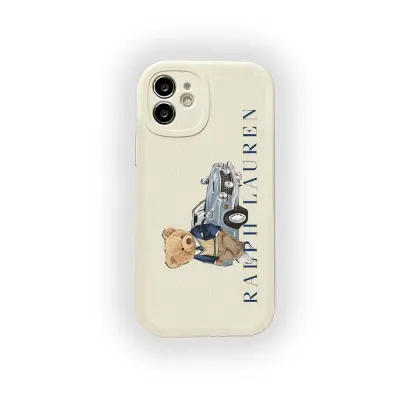
ZentBuy Electronics Spreadsheet

Browse electronics, audio gear and phone accessories on ZentBuy Spreadsheet with reference prices and tips for checking model compatibility.

Electronics on ZentBuy Spreadsheet – Reference Prices

Browse Electronics on ZentBuy Spreadsheet

Electronics Model Compatibility Guide

  1. Match the exact phone or device model

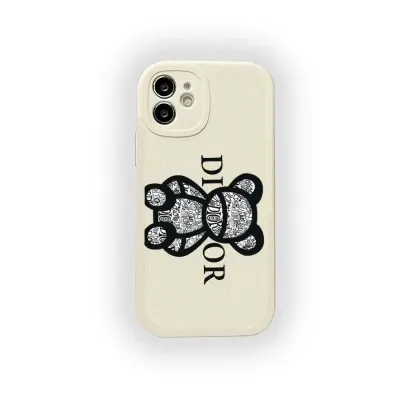
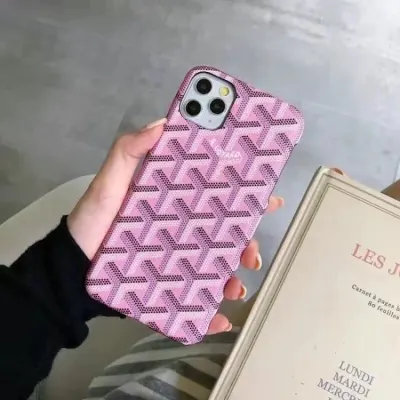
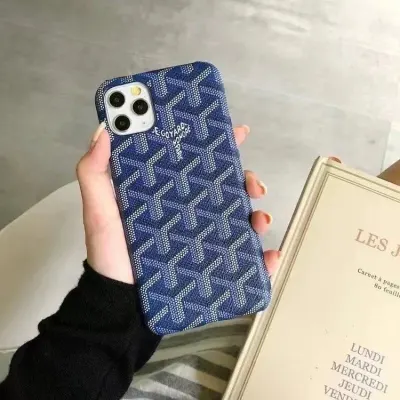
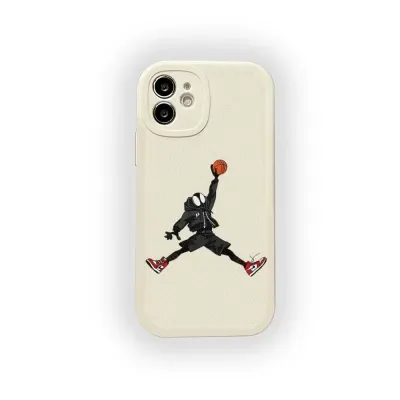
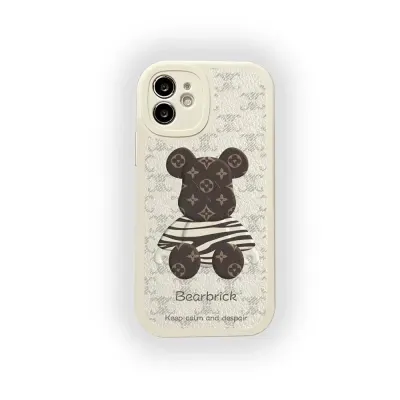
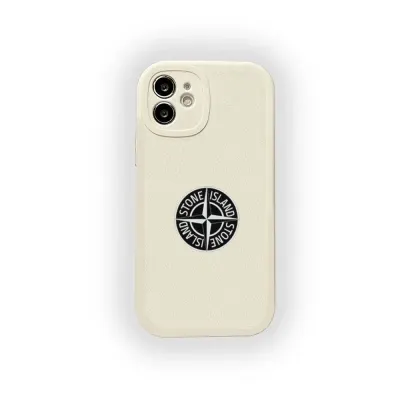
    For cases and wireless charging accessories, compare the model name and generation, camera cutout and connector. Similar product names can refer to different sizes or connectors.

  2. Confirm what the listing includes

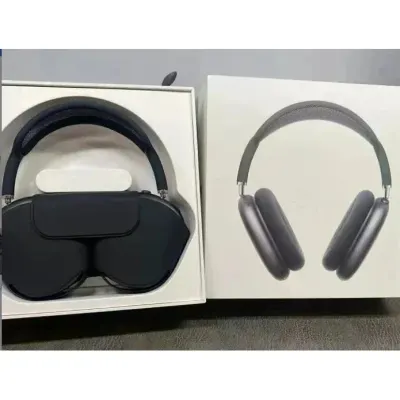
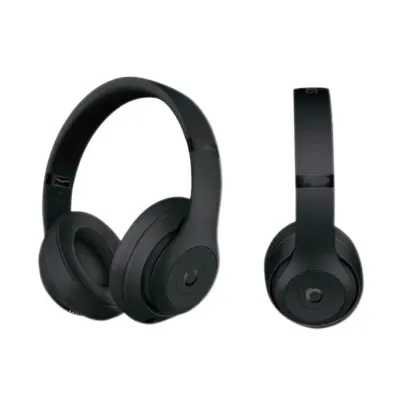
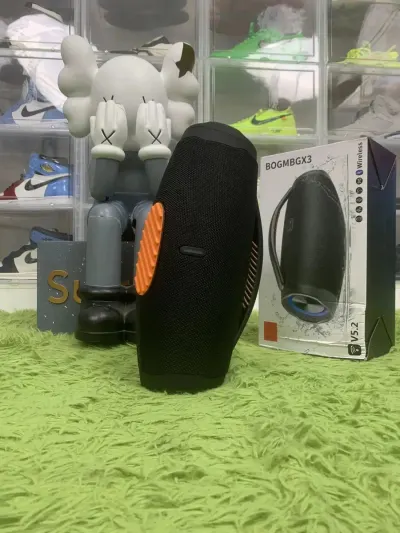
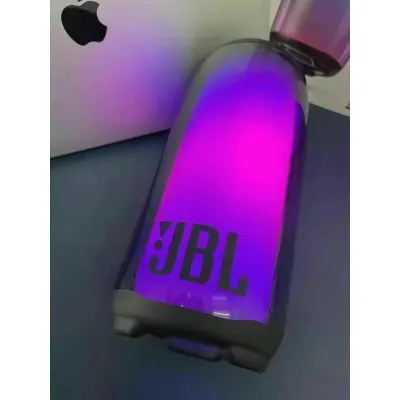
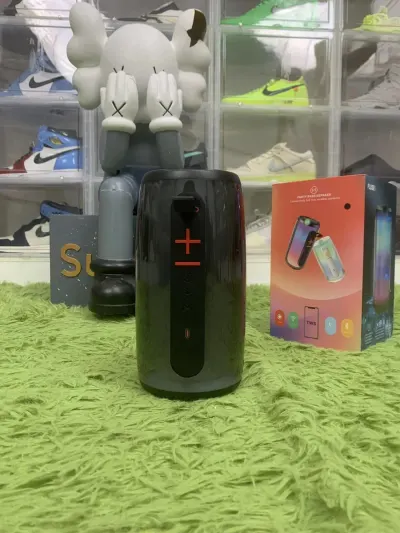
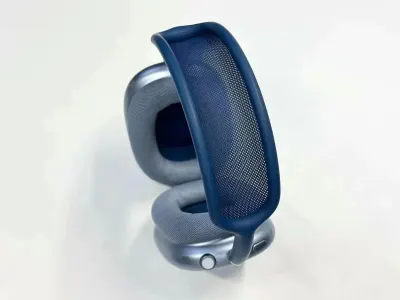
    For audio gear, check the package list for the charging cable, audio cable and any required adapter. Ask which controls or app features work with your phone if you need a specific feature.

  3. Check the label and shipping options

    Ask for a photo of the model or input label when your order depends on a power specification. If the item includes a battery, ask your agent which routes accept it before paying.

Check charger plugs, voltage and frequency

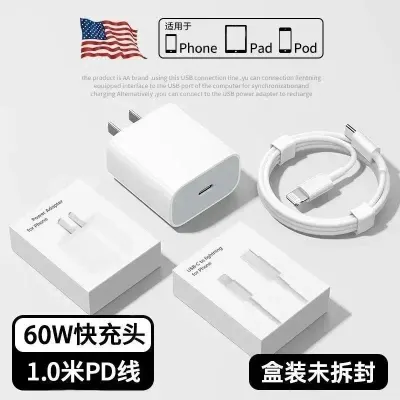
How to Compare USB-C Charger and Cable Specifications

USB-C describes the connector. When buying a charger or cable, compare the supported charging protocol, wattage and any data or display capability you need. Check your device maker’s requirements and match them to the exact model the seller lists. See USB-IF’s cable information.

Check power for the ports you will use together

On a multiport charger, find the power table for the port combination you plan to use. For example, a charger advertised at 65 W might deliver 65 W through one port by itself and split power at 45 W and 20 W when two ports are active. Use the specifications for your charger and cable in that setup. See an example of a manufacturer’s port allocation table.

Read the cable’s power and data ratings separately

Compare the cable’s rated power with your intended charging use. If you also move files, find the stated data rate for that same cable length and model. Check the manufacturer specifications or certified cable markings if the listing only says “fast.” See USB-IF’s cable logo requirements.

Electronics Buying FAQ

How do I check which connector is on each end of a cable?

Read both connectors in the selected option. A USB-A to USB-C cable needs a USB-A port on the charger or computer. Ask for a photo of both ends if the same listing also offers USB-C to USB-C.

Can a USB-C charging cable also connect to a monitor?

Match the cable's stated video capability to the monitor and computer. Check the computer's port specifications too, since the display connection depends on the port, cable and monitor together.